





LAB RESULT UPLOADS
Upload Lab Results from PDFs, Photos, and Scans
Less manual entry. More time to interpret.
Upload original PDFs from supported labs directly. If your client sends photos, screenshots, scans, or a report from a lab we don’t support for direct PDF upload, use an external AI assistant to create a CSV you can review and import into LabSmarts.
2 free blood work analyses · No credit card required
See How Photo-to-CSV Works →
Already have an account? Log In
Two Ways to Upload Your Clients’ Lab Results
Option 1: Direct PDF Upload
Have an original PDF from one of our supported labs? Upload the report directly into LabSmarts to populate recognized test results without typing them one by one.
The lab PDF must match a supported report format.
Option 2: Photo-to-CSV for Photos, Scans & Other Labs
Client sent photos or screenshots, a scanned report, or results from a lab not on our direct-PDF list? The Photo-to-CSV workflow gives you another way to bring those results into LabSmarts without typing each value by hand.
Follow the ready-made prompt in LabSmarts to have your AI assistant transcribe the report into a CSV file. Review the file, then upload it into LabSmarts.
Works with reports from other labs, too.
From Photos or Unsupported Lab Reports to a CSV in Three Steps
Photos and scanned reports no longer have to mean hours of typing.
Copy the ready-made prompt
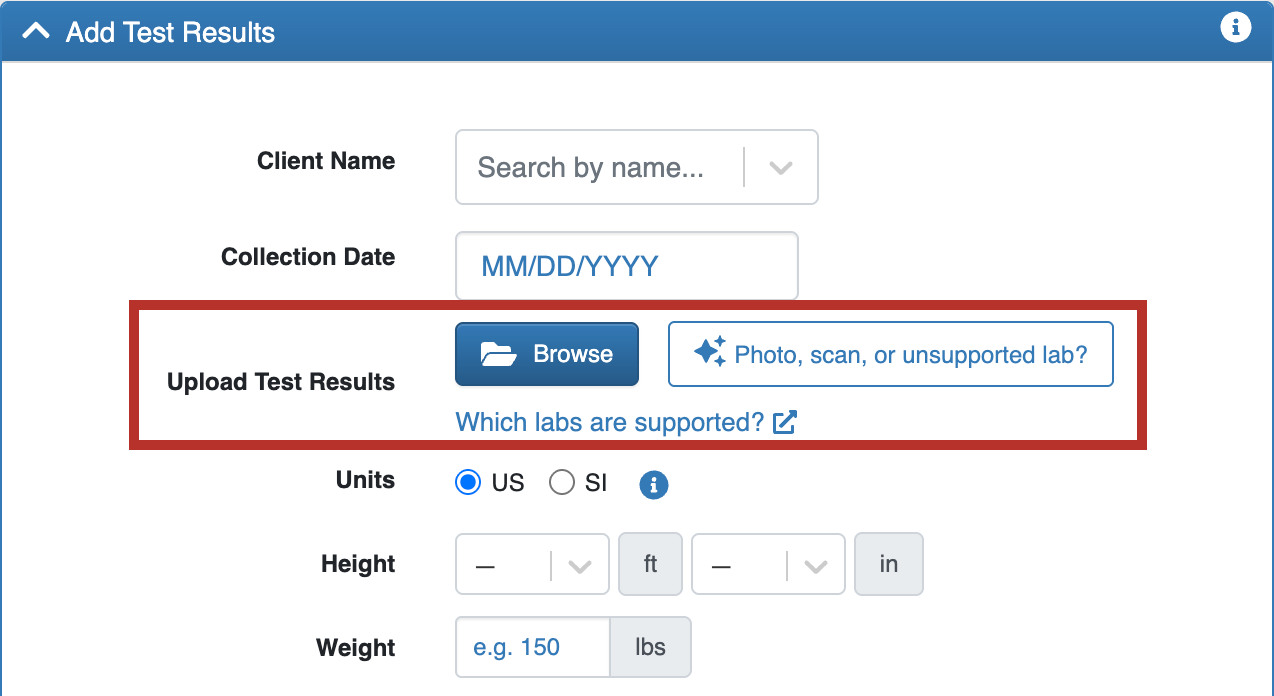
In LabSmarts, click “Photo, scan, or unsupported lab?” beside Upload Test Results and copy the provided instructions.
Let your AI assistant create the CSV
Paste the prompt into an external AI assistant such as ChatGPT, Claude, or Gemini, and attach the report photos, screenshots, or scanned document. The AI tool transcribes the visible results into a CSV file.
Review the CSV and upload
Compare the extracted values with the original lab report, correct any errors, and import the CSV into LabSmarts to populate the recognized test results.
Lab report images → AI assistant → CSV → LabSmarts. Always review AI-generated results against the original lab report, and use an AI service that meets your practice’s privacy and security requirements. Can’t see the video? Watch the MP4 version.
Supported Labs for Direct PDF Upload
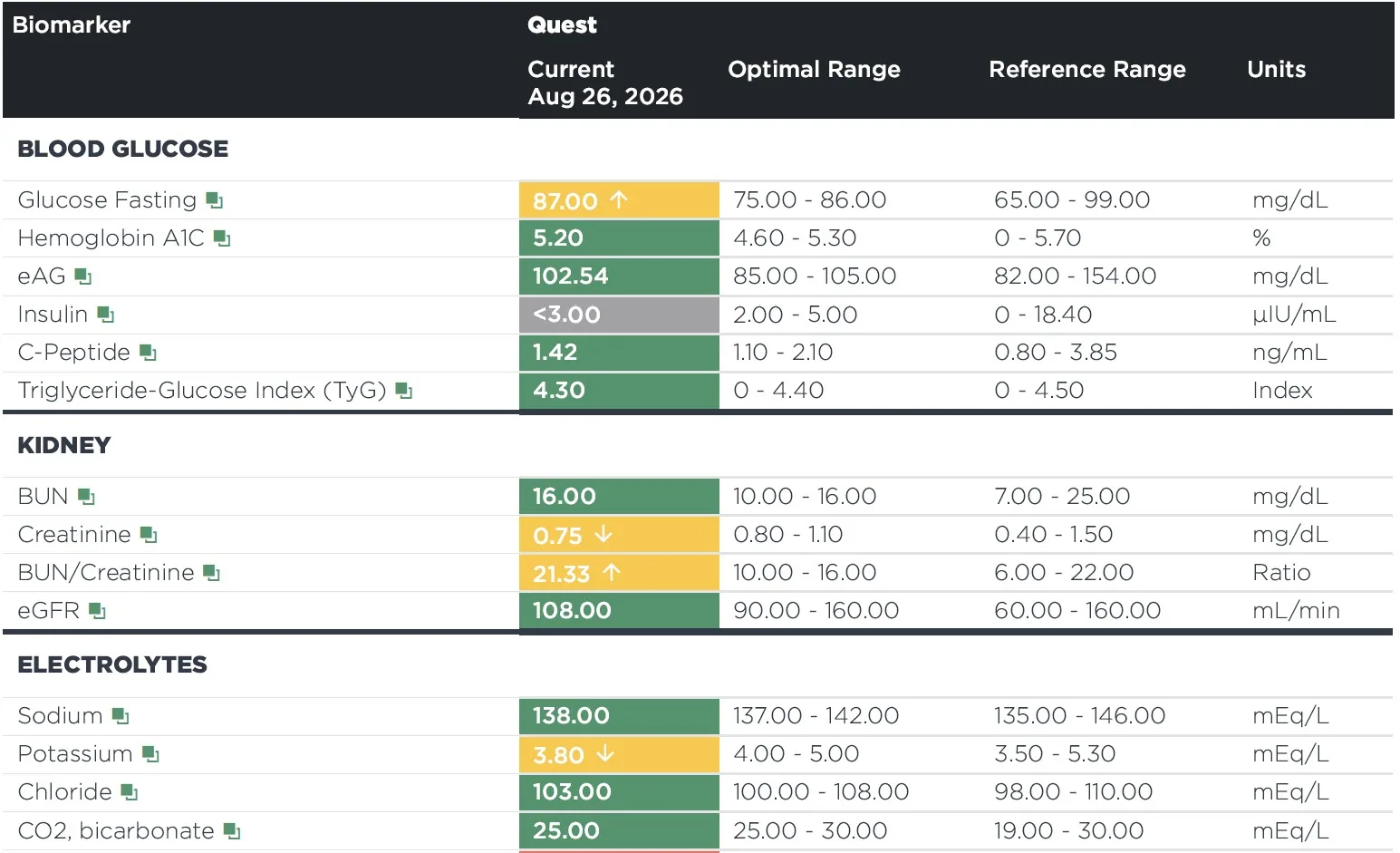
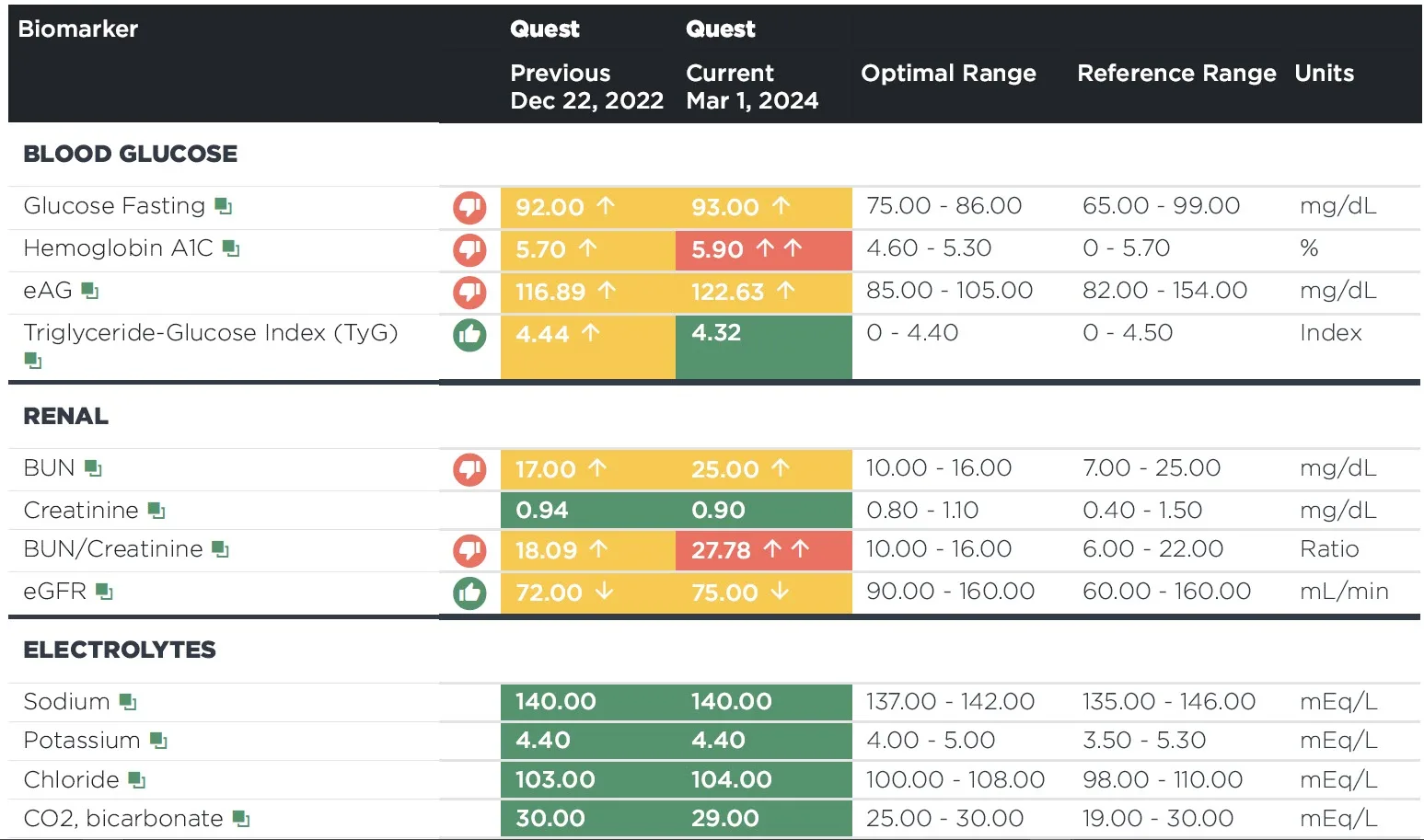
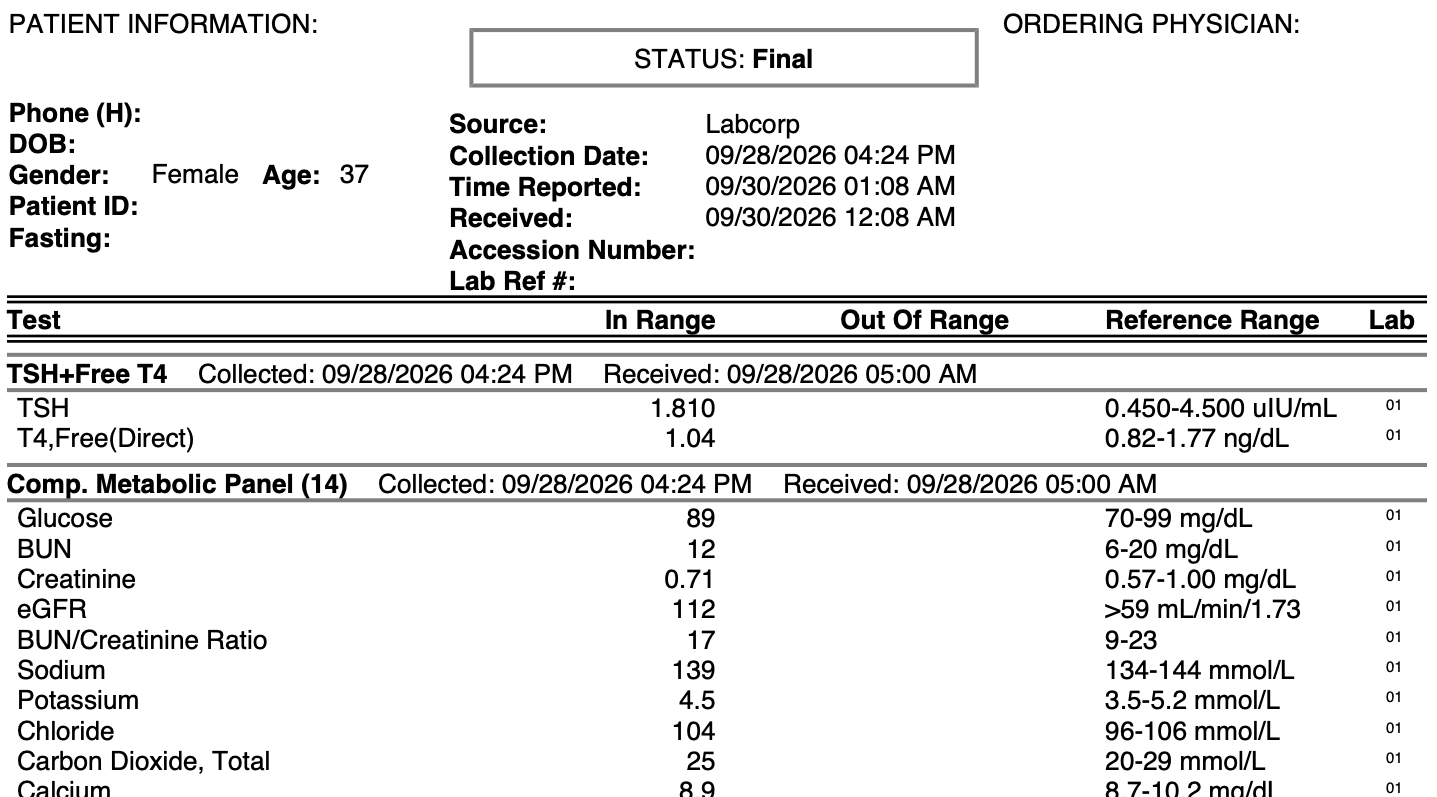
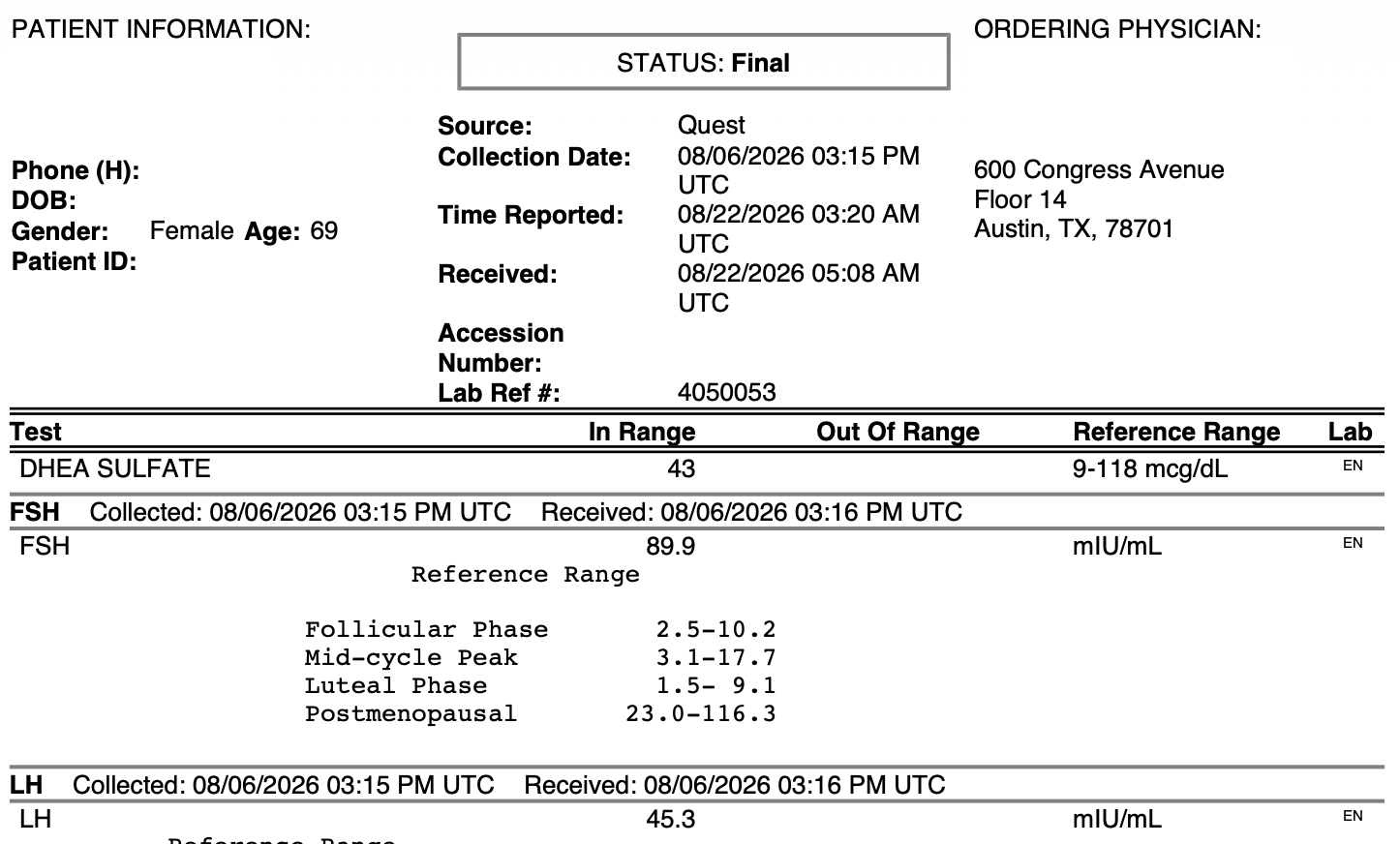
LabSmarts supports direct import from these lab report formats. Click v1, v2, or v3 to view an example and confirm that your PDF matches the supported layout.
- Labcorp | v1 · v2
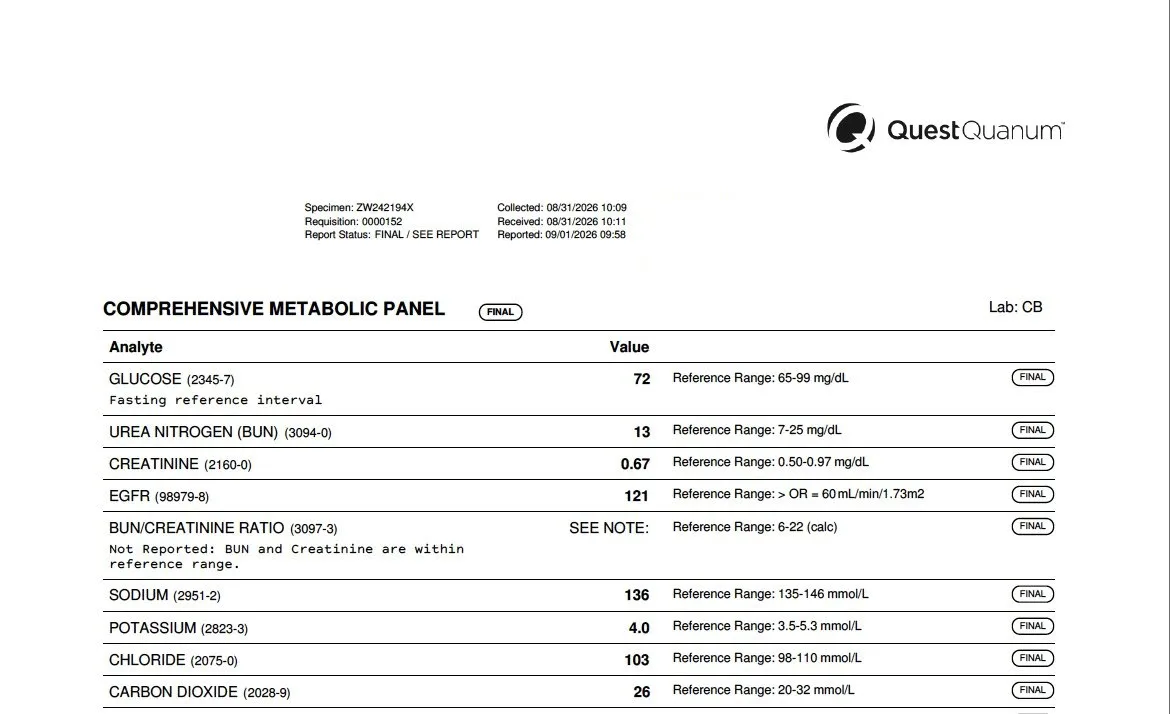
- Quest Diagnostics | v1 · v2 · v3
- DHA Laboratory | v1
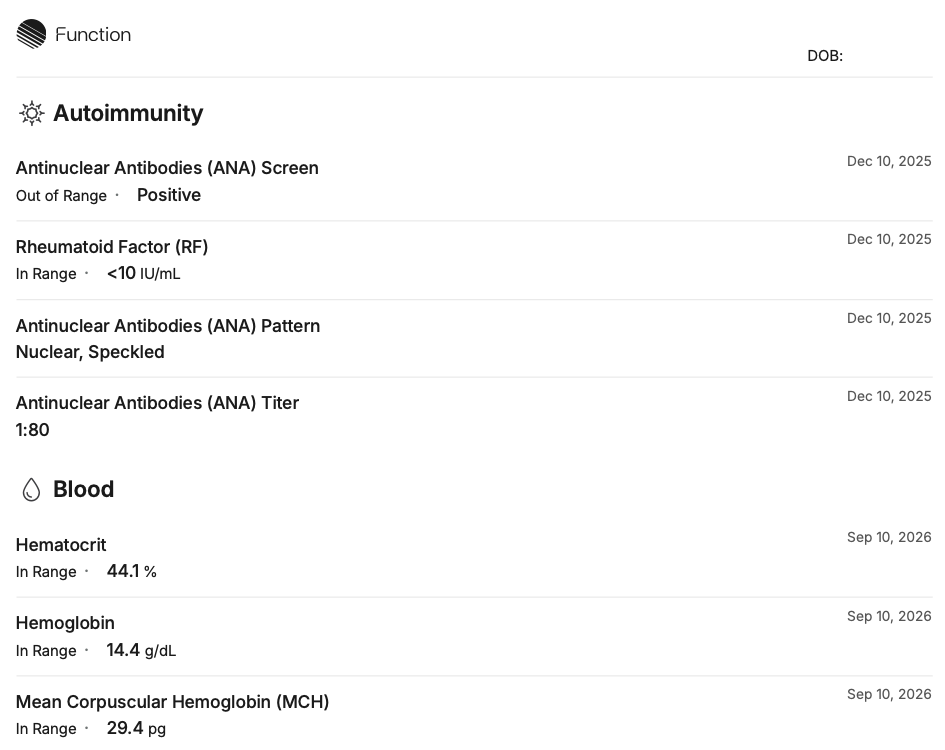
- Function Health (All Biomarkers print) | v1
- Vibrant America | v1 · v2
- Access Medical Labs (AML) | v1
- Evexia Diagnostics (AML ordered through Evexia) | v1
- Rupa Health (AML ordered through Rupa) | v1
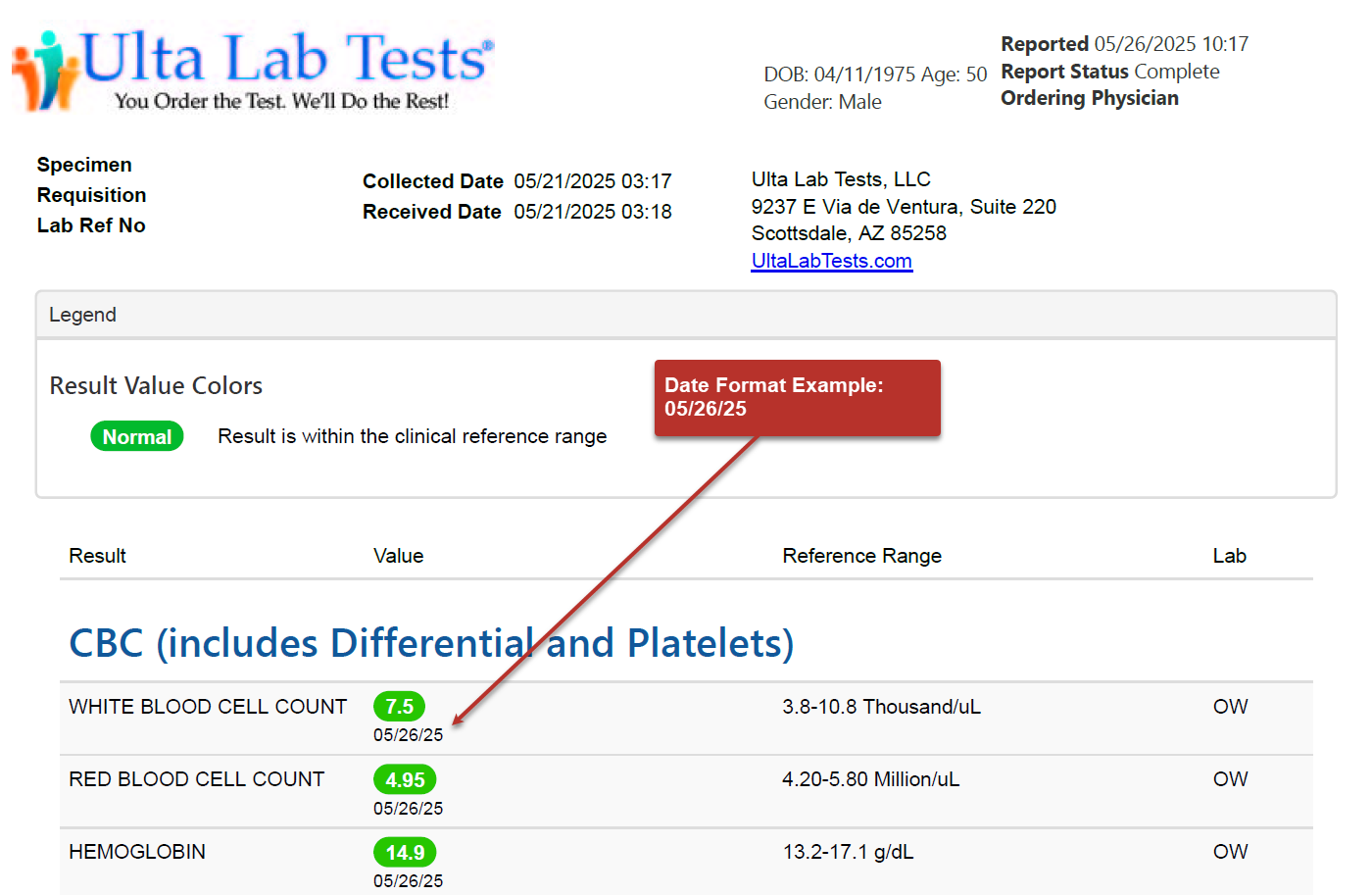
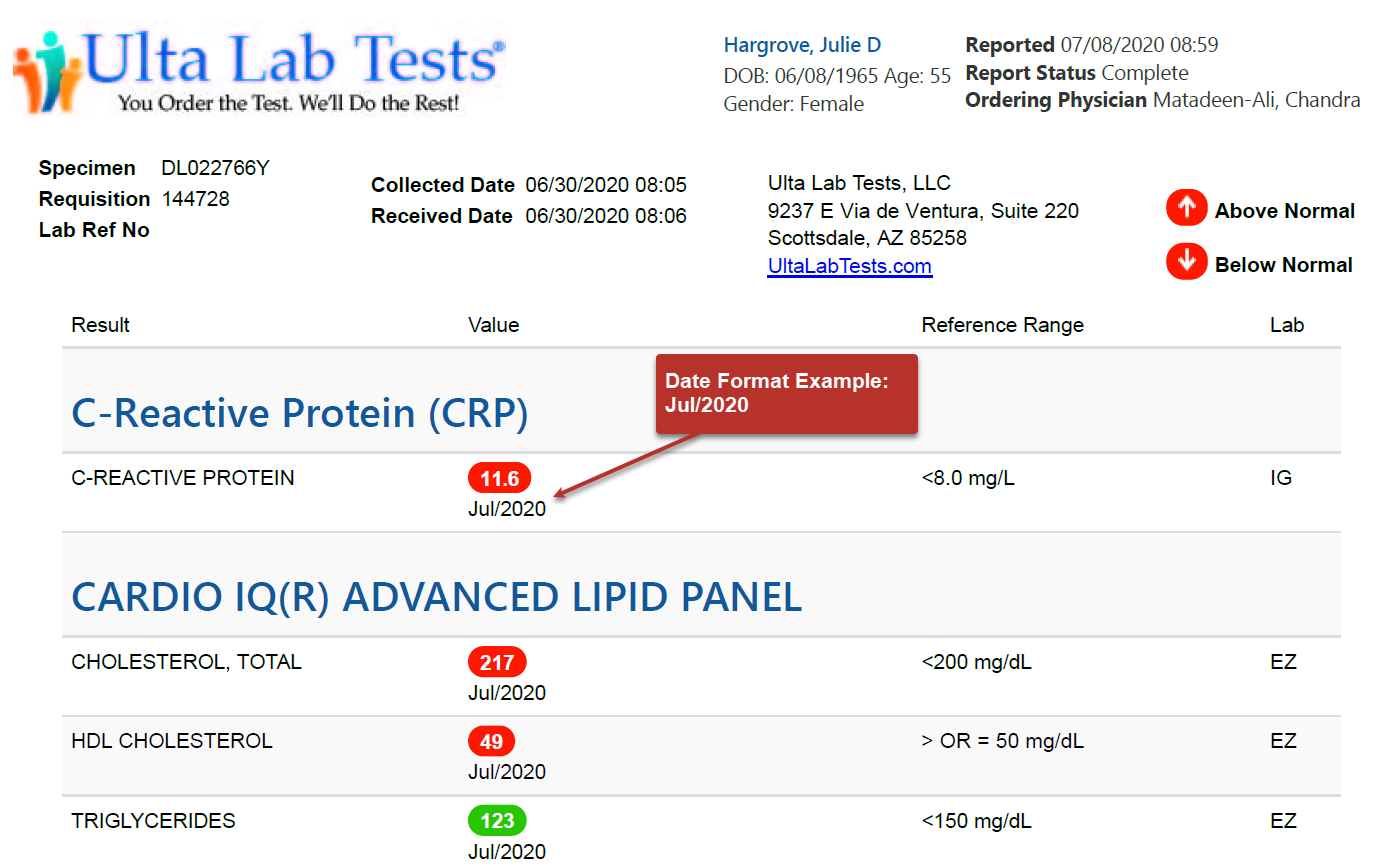
- Ulta Lab Tests | v1 · v2
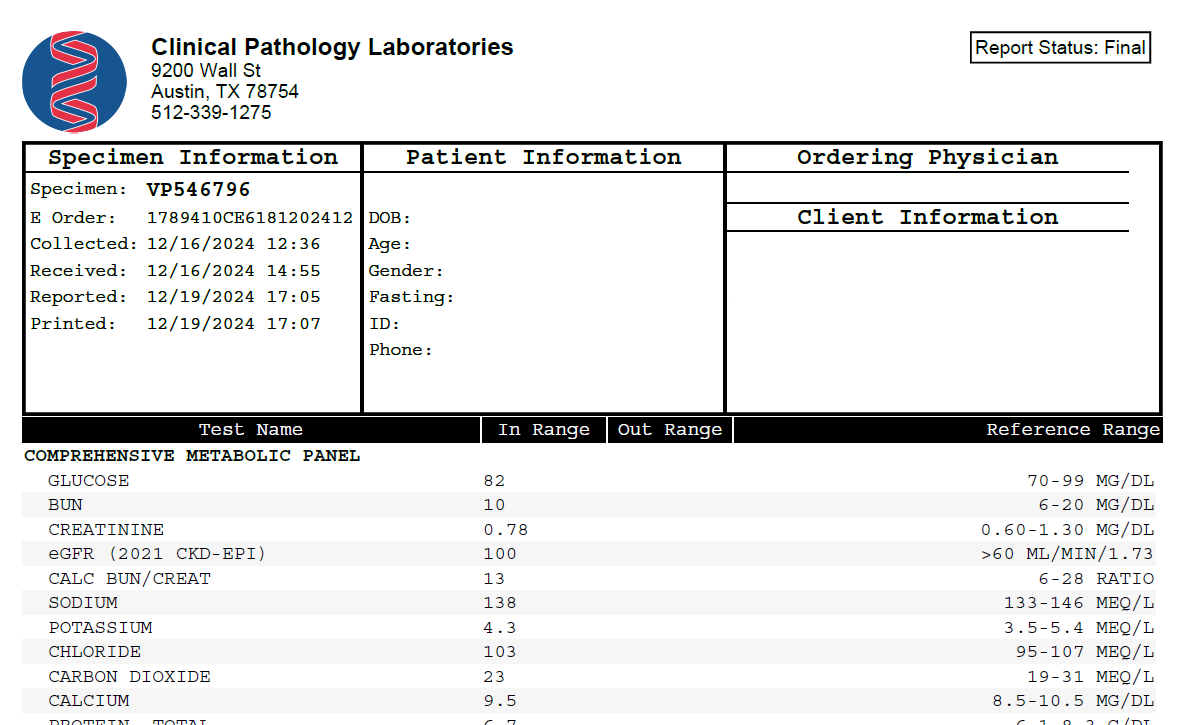
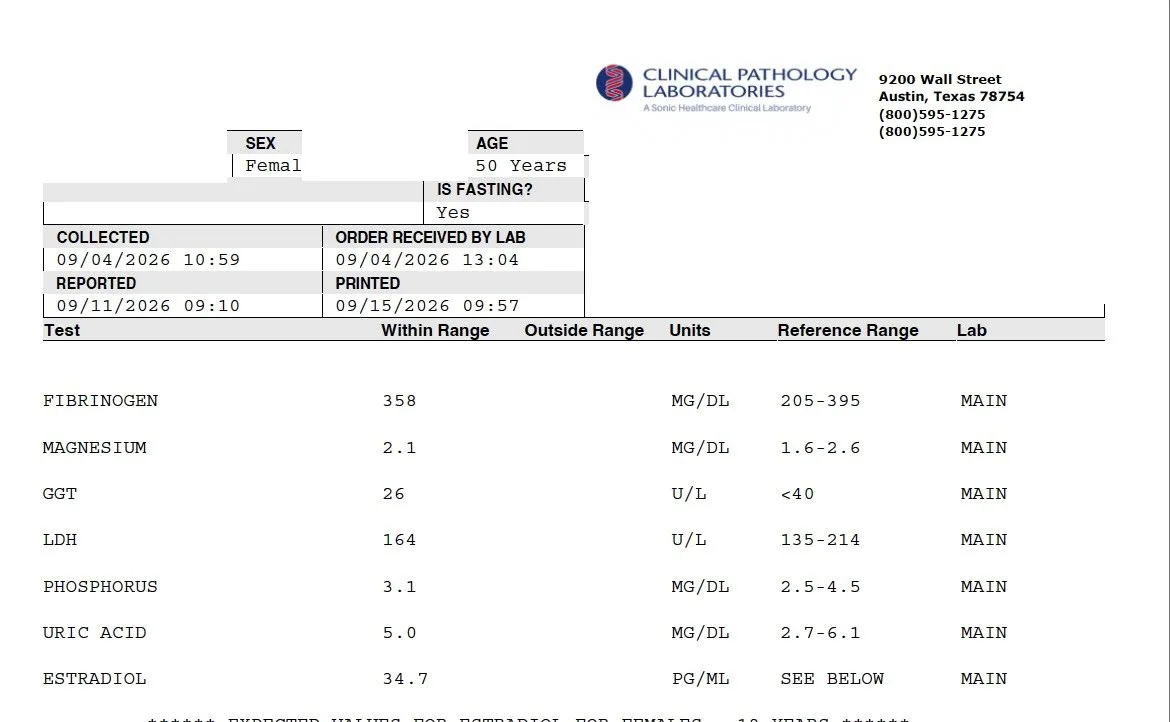
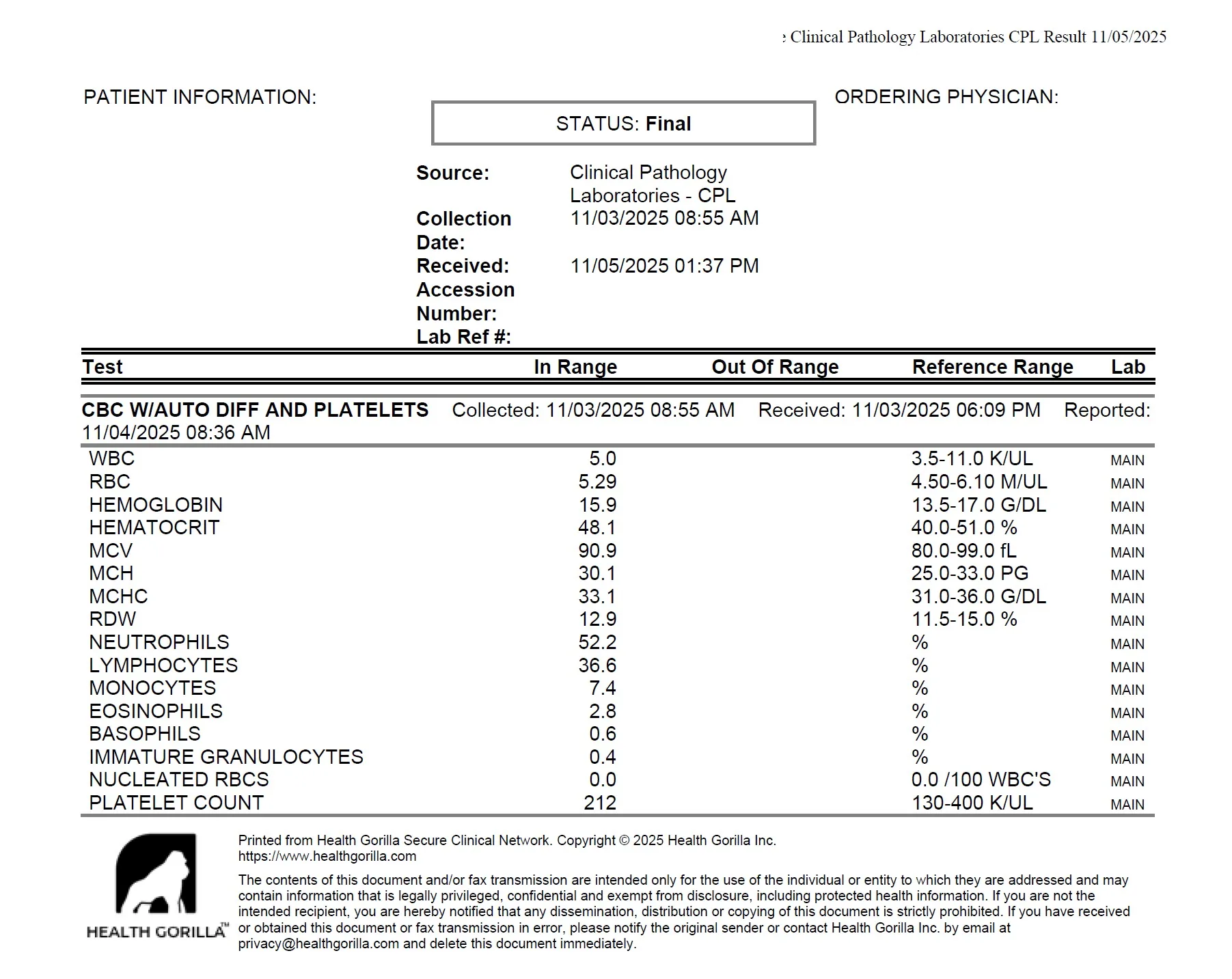
- Clinical Pathology Laboratories | v1 · v2
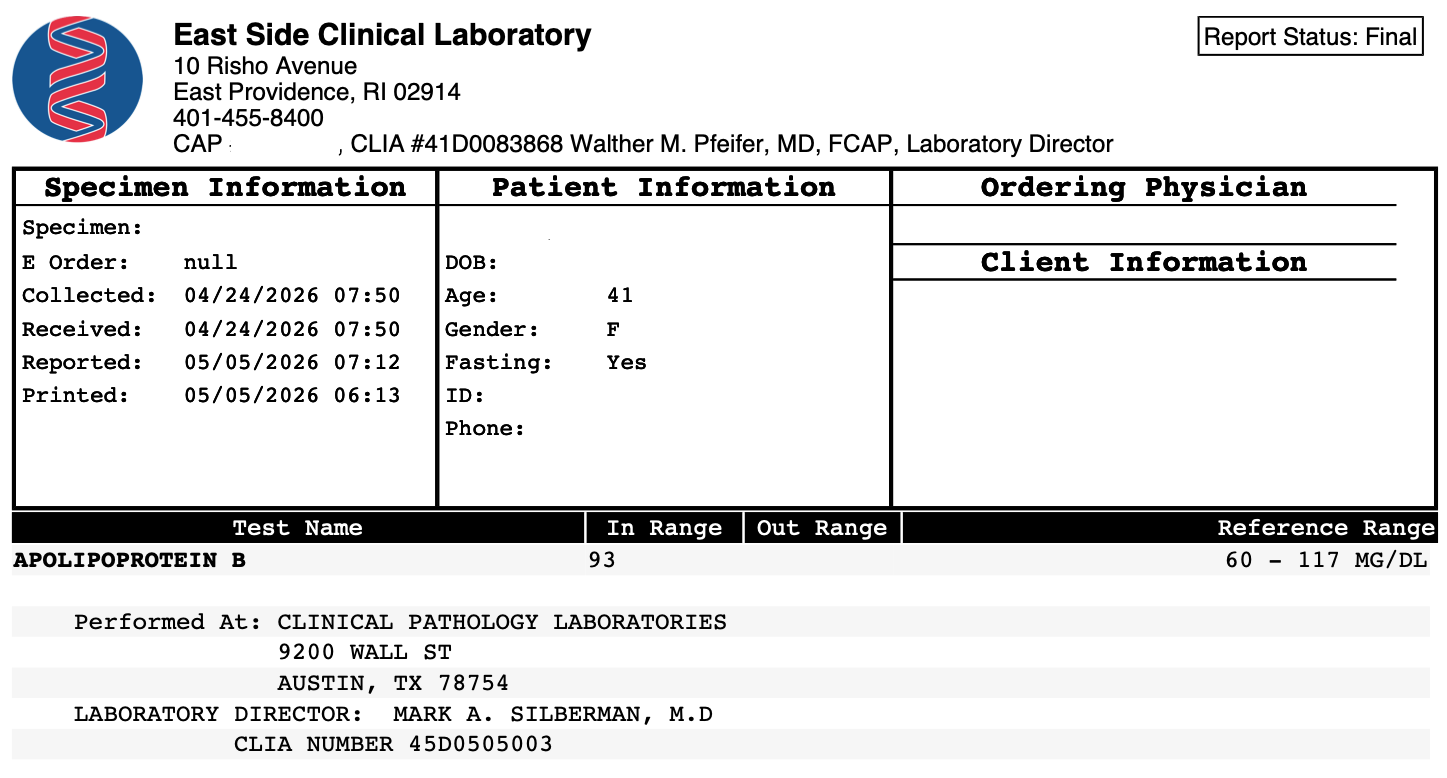
- East Side Clinical Laboratory | v1
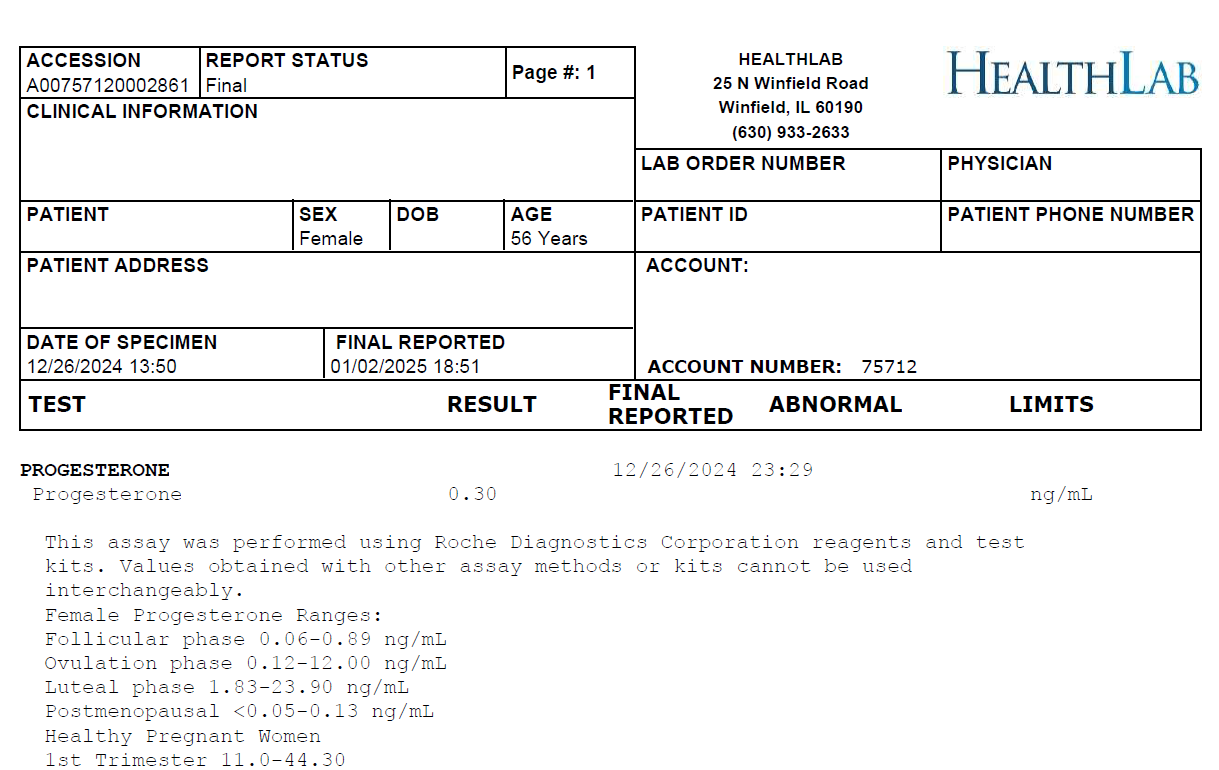
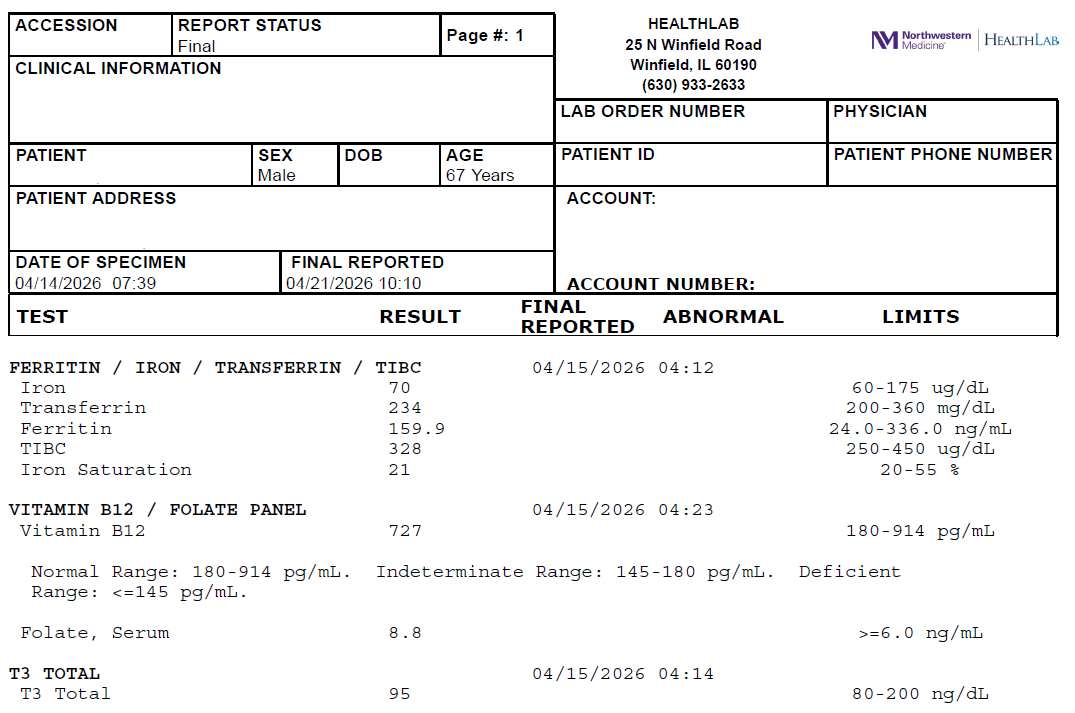
- HealthLab (Northwestern Medicine) | v1 · v2
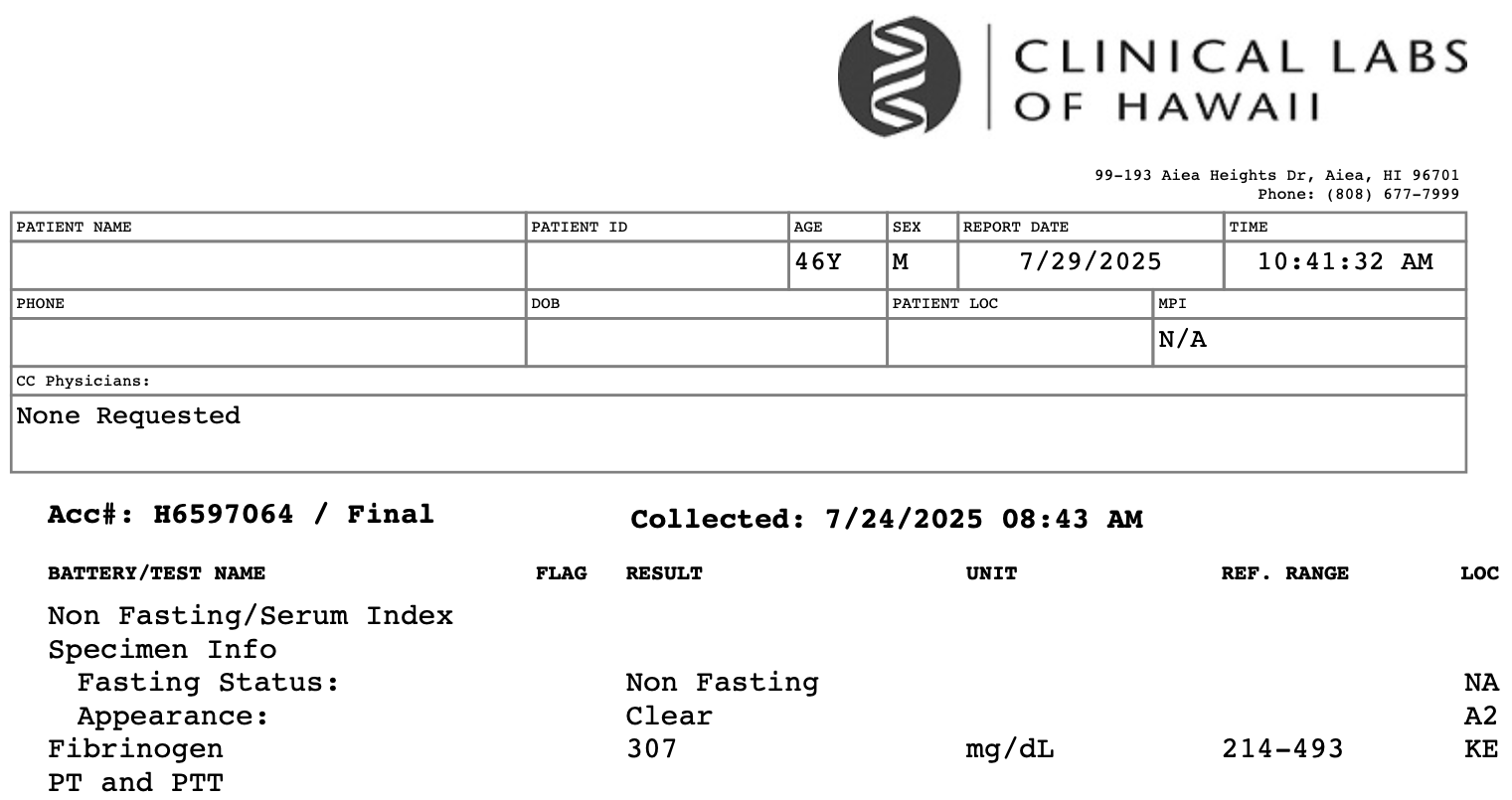
- Clinical Labs of Hawaii | v1
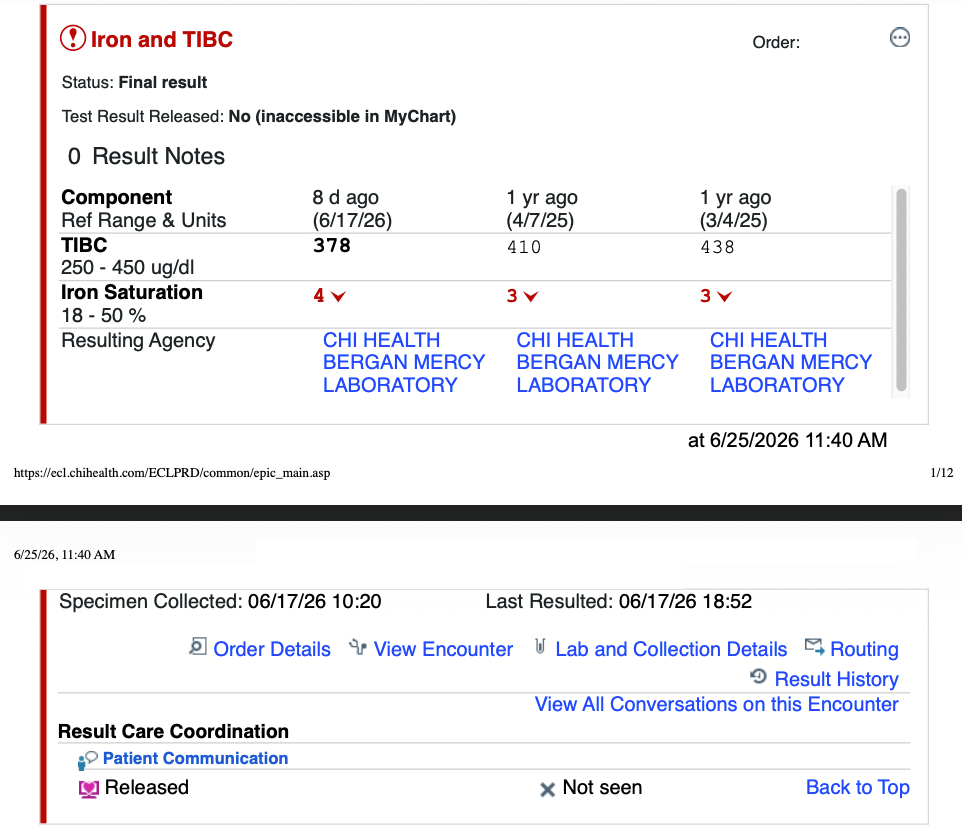
- CHI Health (Epic / MyChart printout) | v1
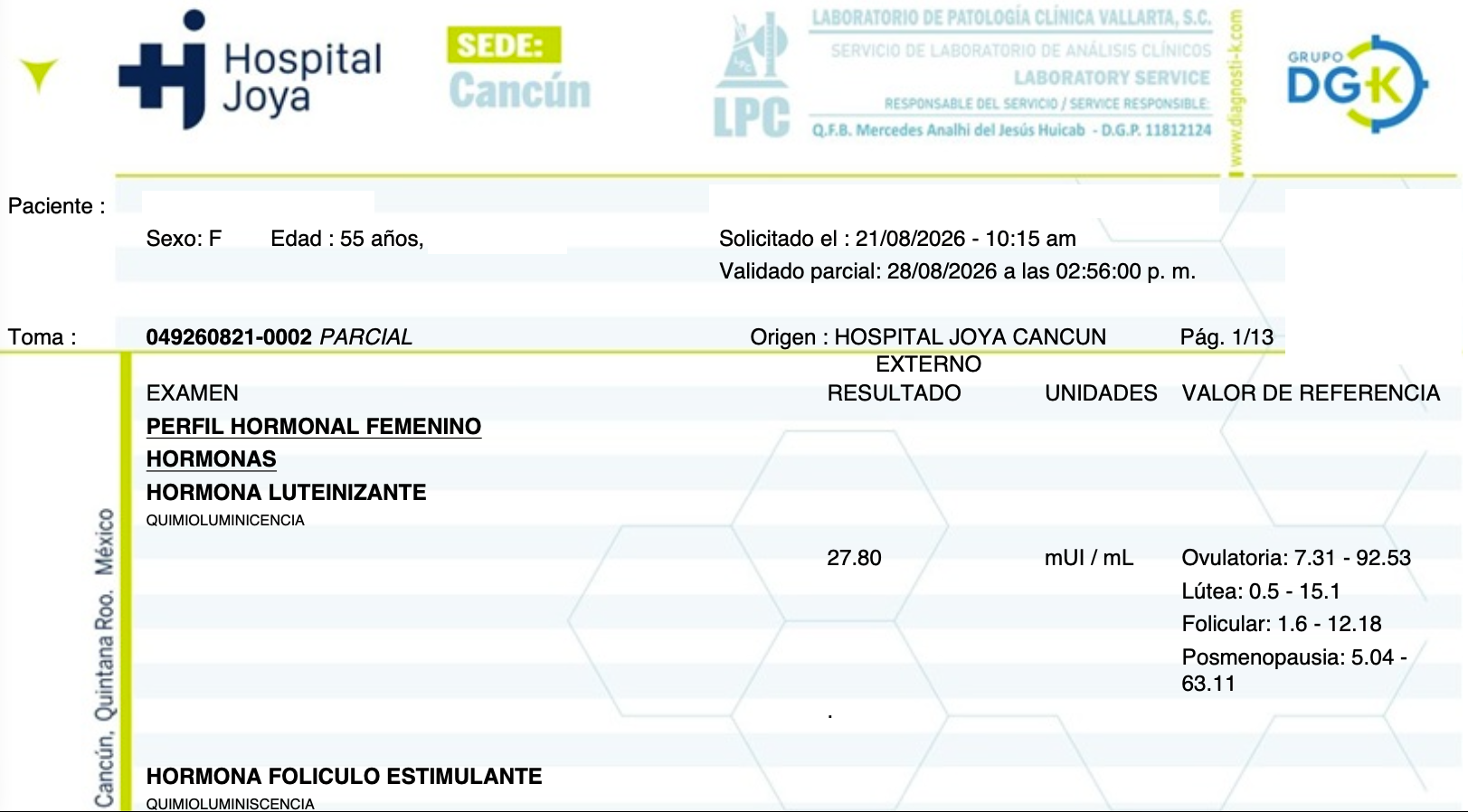
- Hospital Joya / Grupo DGK, Cancún (Spanish-language) | v1
- OptimalDX | v1 · v2
- Health Gorilla | results delivered from Labcorp · Quest · CPL
Direct PDF import works when the report matches a supported format exactly. Health Gorilla delivers another lab’s results in its own wrapper, so compare the source lab format.
Don’t see your lab or PDF format listed? Use the AI-assisted Photo-to-CSV workflow to create a CSV from that report. After you verify it, LabSmarts can import recognized test results. A report from an unsupported lab does not have to mean typing every value by hand.
Spend Less Time Entering Results. More Time Seeing the Bigger Picture.
LabSmarts helps you move from data entry to meaningful interpretation with bio-individual reference ranges, connected biomarker patterns, and client-ready visual reports.
Whether your client sends a supported PDF or images of their labs, you have a more flexible path to getting results into the software.
Frequently Asked Questions
Can I upload lab photos directly into LabSmarts?
Not directly as photos. First use the Photo-to-CSV instructions to have an external AI assistant create a CSV file. Review it, then import that CSV into LabSmarts.
What kinds of PDF files can I upload directly?
Original digital PDFs in one of the supported lab formats. Click a sample version in the list above to see the matching layout.
What if my report comes from a lab not supported for direct PDF upload?
Use the Photo-to-CSV workflow for reports from labs not on the direct-PDF list, including readable scans, photos, faxes, and other PDFs. An external AI assistant creates the CSV, you verify it, and LabSmarts imports recognized results. Not every reported biomarker is necessarily recognized automatically.
How accurate is the AI transcription?
Accuracy depends on the source image and the AI service. Always verify test names, numeric results, units, decimals, and dates against the original report. Do not accept guessed or uncertain values.
Can I try LabSmarts before subscribing?
Yes. Create a free account and try two complete blood work analyses without a credit card.
Ready to Spend Less Time Entering Lab Results?
See what LabSmarts can do with your clients’ blood work, from simpler data entry to personalized ranges, pattern insights, and clear visual reports.
Get 2 Complete Blood Work Analyses Free
2 free blood work analyses · No credit card required
Already have an account? Log In